




INBARASAN R
Developer
Updated on
12-02-2026
Create a Tool in the June AI Platform
If you require your June AI agents To do more than resolution questions, there are tools the key. Provides a tool an agent Contact real systems— Like pulling customer Details, deliver an email, trigger a workflow or call external APIs. When your inputs and outputs is well described, your agents Be more reliable, secure and truly useful for daily business operations. I this guide, We will create step by step a tool By June AI On a evident platform, practical way.
Step 1: Open the Tools Section
I your dashboard, perceive the left sidebar And click Tools. This page is displayed every tool I am already available. Your workspace. To include a new tool, click“+ Create Tool” I the top- right corner.
Step 2: Enter Basic Tool Information
Tool Name Choose a card, clear name Which sounds esteem this an action. It does it easy to both humans and the AI To understand what the tool must do Examples add Create Lead, Acquire customer information, or Send Invoice Email. A elementary, direct name saves time later when your workspace is many tools.
Tool Purpose Explain what the tool I do one or two specific lines. Consider about it the tool’s job description. For Example: Creates A new management in the CRM using customer details Collected during the conversation. A clear target to improve accuracy the agent Determines whether it should be execute this tool.
Bot Keywords Add keywords that match how users naturally search this action. For example: create lead, Add customer, Register client, Onboarding, Update contact. These keywords help the agent map user intent to the right tool faster
Step 3: Set Up the API Connection
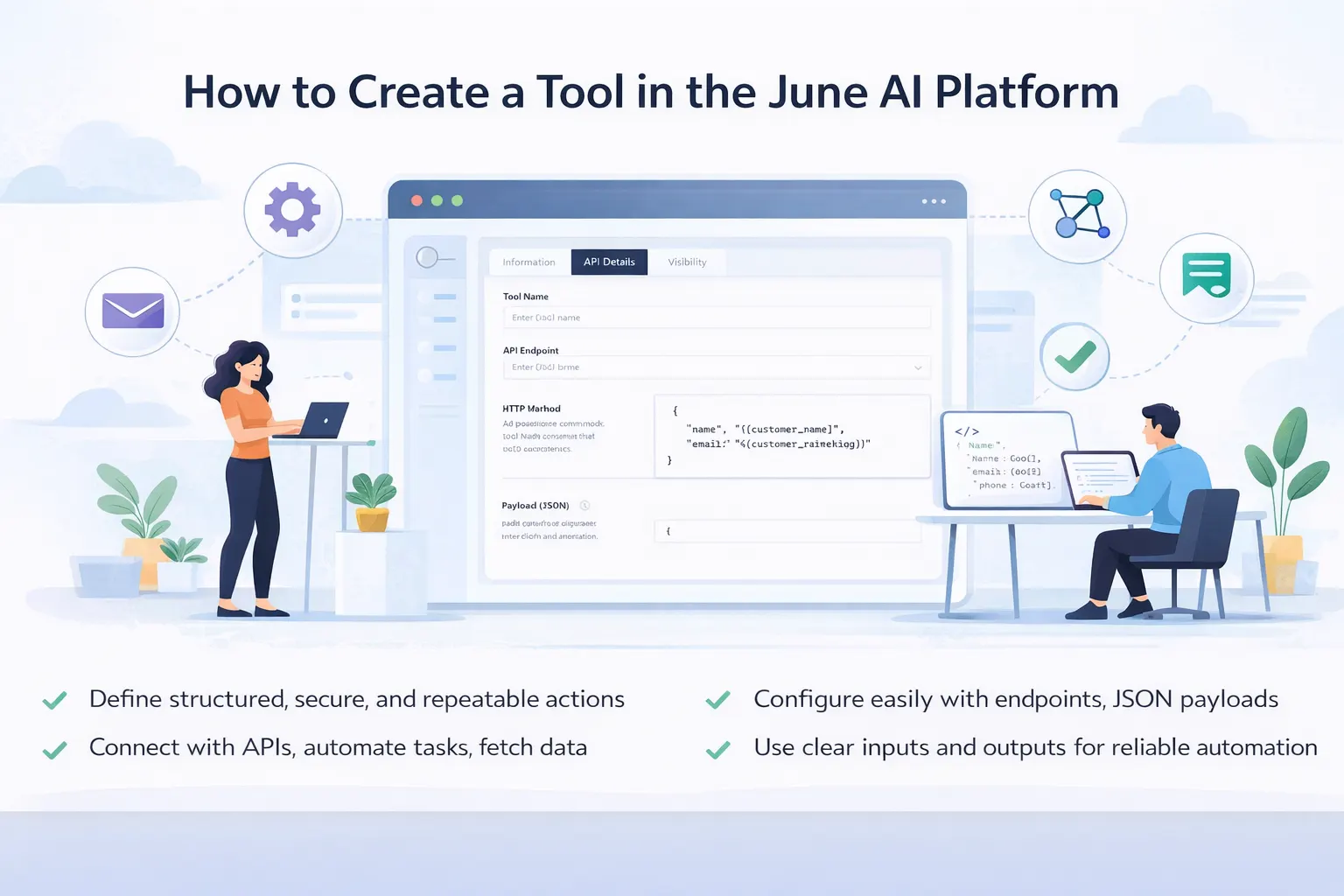
Next, configure how the tool connects to your backend. This is where you define the technical details — the endpoint, method, headers, and payload — so June AI knows exactly what to call when the tool runs.
Endpoint
Paste the API URL that should run when the tool is triggered. Example: https://api.company.com/v1/leads/create HTTP Method
Select the method based on what your API needs to do: use GET to fetch data, POST to create new records, PUT to update records, and DELETE when something needs to be removed.
Step 4: Manage Tool Visibility
Commence the Visibility tab Who can view or edit this tool. You can add teammates by searching. Their email addresses. By default, the creator has been marked the Owner, which helps to retain tool access Properly managed a shared workspace.Step 5: Create and Activate
Once you’ve reviewed everything, click Create. Your tool is now ready — you can attach it to agents and start using it in real workflows.
Best Practices
Use simple tool Names that describe clearly. The action. If anyone is reading the name, They should immediately comprehend what is what the tool do Preserve your JSON payload Clear and consistent. Good formatting do tools easier Troubleshooting and maintenance later. Guaranteed your APIs with proper authentication And avoid exposing tokens in places where they belong. Tools Touch often real business systems, So security should never be an afterthought. Document down a clear purpose statement. When the tool’ s intent is clear the AI It is more likely to activate correctly. Before going dwell, test the endpoint at least once. A quick test Prevents errors when users are actively using the agent.